Recording your screen is usually the easy part. The real work often starts afterward, when you notice a long pause, a wrong click, poor audio, or a section you no longer want.
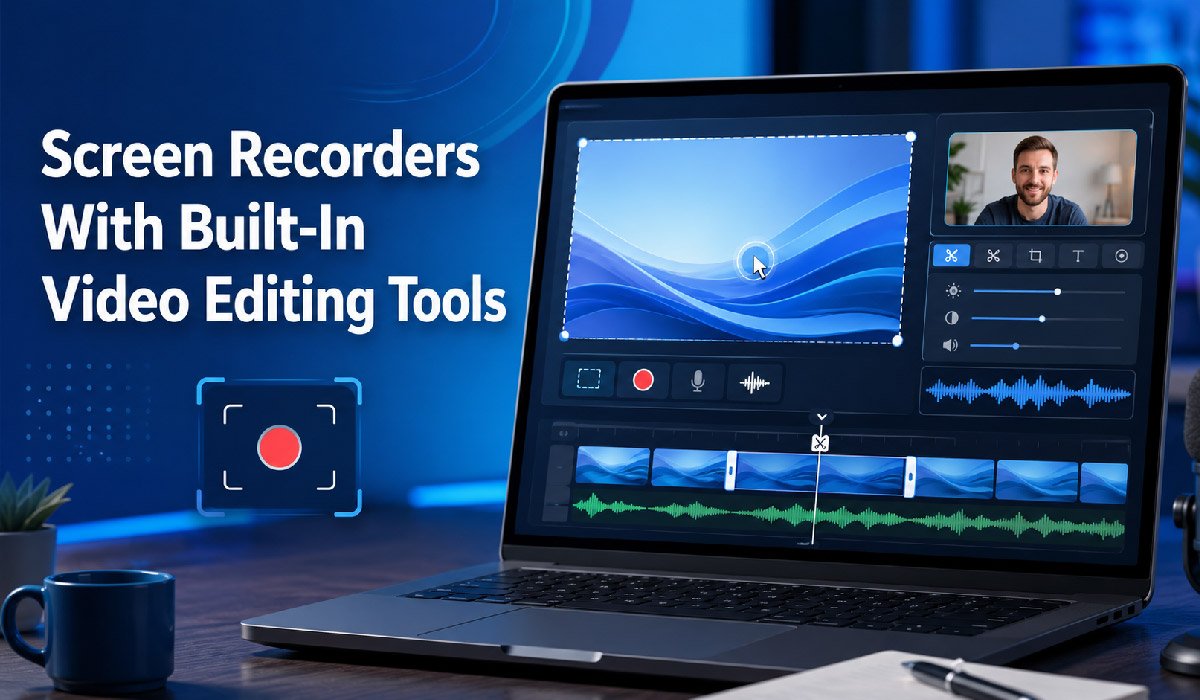
That is where screen recorders with built-in video editing tools can help. Instead of recording in one program and moving your video into a separate editor, you can record, trim, edit, and prepare your video in the same place.
This guide covers 10 screen recording tools available in 2026 that also include video editing features. You will also learn how these tools work, what to look for, their main benefits, and the limits you should consider before choosing one.
What Are Screen Recorders With Built-In Video Editing Tools?
Screen recorders with built-in video editing tools are programs or online services that let you capture your computer screen and edit the recording afterward.
You can think of them as a screen recorder and video editor combined. After recording a tutorial, presentation, lesson, or software demonstration, you can usually trim unwanted sections, add text, work with audio, include captions, and make other basic changes without opening a second program.
These tools can be useful for teachers, students, remote teams, trainers, content creators, marketers, and support staff. They are especially helpful when you want to create clear videos without learning a complicated editing program.
Why Are Screen Recorders With Built-In Video Editing Tools Becoming Popular?
People often want a faster way to create useful videos. Moving a recording between several programs adds extra steps, especially when you only need simple edits.
Many modern screen recorders now include tools for trimming clips, adding captions, adjusting audio, combining recordings, or removing unwanted sections. Some also include AI-assisted features that can help with tasks such as transcription, captioning, or removing filler words.
This all-in-one approach works well for tutorials, internal updates, training videos, product demonstrations, and other projects where speed and simplicity matter.
10 Best Screen Recorders With Built-In Video Editing Tools in 2026
1. Camtasia
Camtasia combines screen recording with a timeline-based video editor. It can record your screen, webcam, microphone, and system audio, giving you separate material to work with during editing.
Its editing tools include trimming, splitting, transitions, callouts, cursor effects, and text-based features. It is a practical choice for people creating detailed tutorials, training videos, lessons, or software demonstrations.
2. Loom
Loom is designed around quick screen recording and sharing. You can record your screen, camera, or both, then make basic edits before sending the video to someone else.
Its editing options include trimming and combining clips, while some plans also provide tools such as filler-word removal. Loom can work well for team updates, feedback, short explanations, and simple demonstrations where you do not need a full video editor.
3. ScreenPal
ScreenPal combines screen and webcam recording with a more traditional video editor. You can trim clips, crop footage, add text or images, adjust speed, and work with audio.
It also includes features such as captions and annotations. This makes it useful for people who want more editing options than a simple recorder but do not need professional filmmaking software.
4. VEED
VEED is mainly a browser-based video platform. You can record your screen, webcam, and audio, then continue editing the recording in the same online workspace.
Its editor includes trimming, subtitles, music, audio tools, and other video editing features. VEED can be useful for tutorials, presentations, social media videos, and short online content, especially if you prefer working in a browser.
5. Descript
Descript handles editing differently from most traditional video editors. It can turn your recording into a transcript and let you edit parts of the video by editing the text.
For example, deleting a sentence from the transcript can also remove the matching part of the recording. Descript also includes tools for captions, trimming, audio cleanup, and filler-word removal. It may suit people who prefer editing spoken content through text rather than working only on a timeline.
6. Microsoft Clipchamp
Microsoft Clipchamp includes screen recording inside its video editing platform. You can record your screen, webcam, or both and then place the recording directly on the editing timeline.
You can trim, split, crop, add text, work with audio, and reposition webcam footage. Its layout is fairly familiar if you have used basic timeline editors before, making it a reasonable starting point for beginners.
7. Wondershare DemoCreator
DemoCreator is built for screen recording and video editing. It can capture your screen, webcam, microphone, and system audio, which can be useful when creating tutorials or presentation-style videos.
The editor includes trimming, cropping, transitions, annotations, animations, and cursor effects. It also includes AI-assisted tools for selected editing tasks. The exact features available can depend on the version or plan you use.
8. Canva
Canva includes screen recording as part of its wider design and video tools. You can record your screen and then use the footage inside a Canva video project.
Once the recording is in Canva, you can combine it with text, graphics, layouts, music, and other design elements. Canva can be useful if you already create presentations, social content, or visual explainers there and want to keep your work in one platform.
9. Kapwing
Kapwing provides screen recording inside its browser-based video editor. Depending on your browser and recording setup, you can capture a screen, window, or browser tab and include camera footage when needed.
After recording, you can trim the video, add text, include music, create transitions, and use other editing tools. It is well suited to short tutorials, online content, and videos made mainly for web or social platforms.
10. Vimeo
Vimeo offers screen recording alongside its video hosting and editing tools. You can record your screen, webcam, or both and then make edits before sharing the finished video.
Editing features can include trimming, splitting, deleting sections, and adding text. Some Vimeo plans also include additional AI-assisted editing tools. It may be most useful for people or teams that already use Vimeo for hosting and sharing video.
How Do Screen Recorders With Built-In Video Editing Tools Work?
Most of these tools follow a similar process.
First, you choose what you want to record. That might be your full screen, one application window, or a browser tab. You can also decide whether to include your microphone, computer audio, or webcam.
Once you stop recording, the video appears inside an editor. You can then cut mistakes, remove long pauses, add captions, adjust sound, insert text, or highlight important parts of the screen.
Imagine you are recording a tutorial and click the wrong menu halfway through. Instead of starting again, you can remove that section and continue with the rest of the recording.
How to Use a Screen Recorder With Built-In Editing Tools
- Choose what you want to record.
Select your full screen, a specific window, or a browser tab. Close anything private that you do not want viewers to see.
- Check your microphone and camera.
Make sure the correct microphone is selected. Turn on your webcam only if seeing you will help the viewer understand the video.
- Start recording.
Speak clearly and move through your demonstration at a comfortable pace. You do not need to restart after every small mistake if you can remove it later.
- Trim unwanted sections.
Remove silence, mistakes, repeated sentences, and anything that does not help the viewer.
- Add useful editing elements.
Use captions, text, arrows, zooms, or highlights when they make the video easier to follow. Avoid adding effects simply because they are available.
- Watch the finished video.
Check the sound, spelling, timing, and anything visible on your screen before exporting or sharing it.
Main Benefits of Screen Recorders With Built-In Video Editing Tools
You Can Finish Videos Faster
Using one tool for recording and editing removes the need to keep moving files between different programs.
For a short tutorial or team update, that can make the whole process much simpler. You can record, remove mistakes, add a title, and share the result from the same workspace.
You Can Fix Small Mistakes
A screen recording does not have to be perfect on the first attempt.
If you pause for too long, repeat a sentence, or open the wrong window, you can often cut that part out. This can save you from recording an entire video again because of one small error.
You Can Make Instructions Clearer
Editing tools can help viewers understand what is happening on the screen.
For example, you might add a caption to explain a step, zoom in on a small menu, or place an arrow beside the button the viewer needs to click. These small changes can make tutorials easier to follow.
You Can Keep Recording and Sharing in One Workflow
Some screen recording platforms also include hosting or sharing tools.
This can be useful when you are making a quick video for a coworker, student, customer, or client. Instead of exporting a large file and uploading it somewhere else, you may be able to share it directly from the platform.
Possible Limitations and Things to Consider
An all-in-one screen recorder is convenient, but it will not be the best choice for every project.
Free plans may limit recording time, storage, export quality, or certain editing features. Some tools may also place watermarks on videos or reserve advanced features for paid plans. Because these conditions can change, check the current pricing and feature information before signing up.
Browser-based tools may depend more heavily on your internet connection, browser permissions, and computer performance. Desktop programs can offer more control, but they may use more storage space and system resources.
You should also think about privacy. Close messages, passwords, financial information, customer records, and confidential documents before you begin recording.
If other people appear or speak in the recording, make sure you have any permission required by your workplace rules and local laws.
Before choosing a tool, ask yourself:
- How long are your recordings?
- Do you need webcam and system audio recording?
- Are basic trimming tools enough?
- Do you need captions or transcript editing?
- Will you work mainly in a browser or on a desktop?
- Do you need to share videos directly with other people?
- What features are included in the free or paid plan?
Screen Recorders With Built-In Editors vs. Separate Recording and Editing Software
Screen recorders with built-in editing tools focus on convenience. Separate recording and editing programs usually give you more control.
An all-in-one tool is often a better fit for tutorials, lessons, quick training videos, feedback, presentations, and workplace updates. You can record and make the most important edits without setting up a larger production workflow.
Separate software may be better for more complex projects. If you need detailed color correction, advanced sound mixing, special effects, complex animation, or footage from several cameras, a dedicated video editor may give you more options.
The right choice depends on the type of video you make. If you only need to remove mistakes, add captions, and explain what is happening on screen, a built-in editor may be all you need.
Final Thoughts
The best screen recorders with built-in video editing tools in 2026 give you a simpler way to create finished videos without using several different programs.
Camtasia and DemoCreator offer more traditional editing controls. Loom focuses on quick recording and sharing, while Descript makes transcript-based editing a central part of the workflow. Browser-based tools such as VEED and Kapwing can also be convenient when you want to work online.
Before choosing a tool, think about what you actually plan to record. Compare the recording limits, editing features, operating system support, sharing options, and current plan restrictions.
Then test one or two options with a short recording. A simple five-minute tutorial will usually tell you more about a tool’s usability than a long feature list.